How it works
From search to countdown, step by step. The screenshots come from a real school page, Central Columbia High School in Bloomsburg, Pennsylvania. They were taken on 2 November 2026, with the clock set to 10:20 a.m. on a school day so the countdown has something to show.
1. Find your school
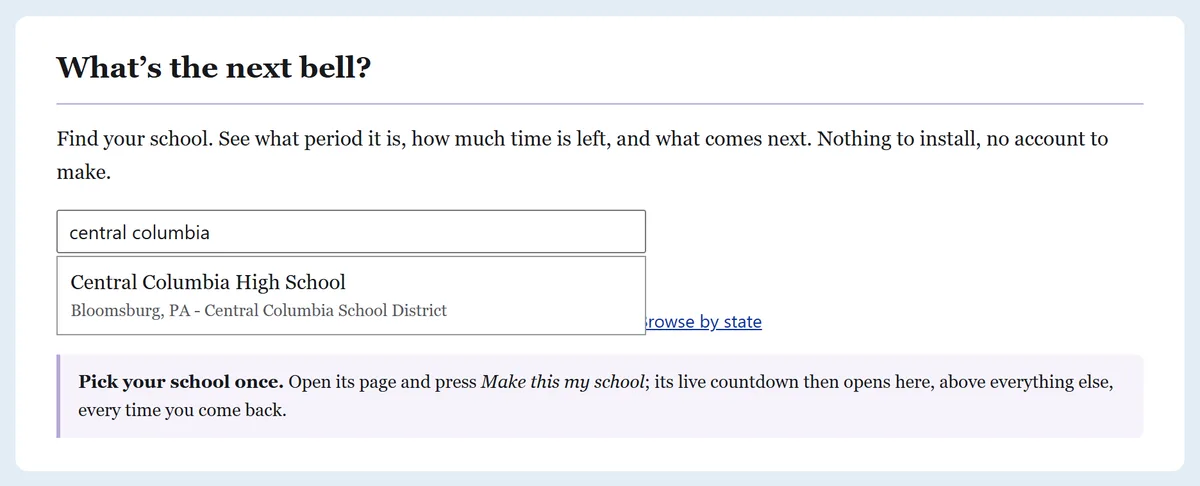
Start typing in the box on the home page. You can use part of the school’s name, the town, the district, or the initials students actually use, like CCHS. Matches show up as you type. You can also browse by state, then by district.
2. See where the day is
The top of every school page shows what’s happening right now: the current period, the time left in it, what comes next, when school lets out, and how much of the day is done.
The countdown runs in your browser, using the school’s time zone rather than yours. A grandparent in Arizona sees the same countdown as a student in Pennsylvania. Once the page has loaded, it keeps counting even if your signal drops.
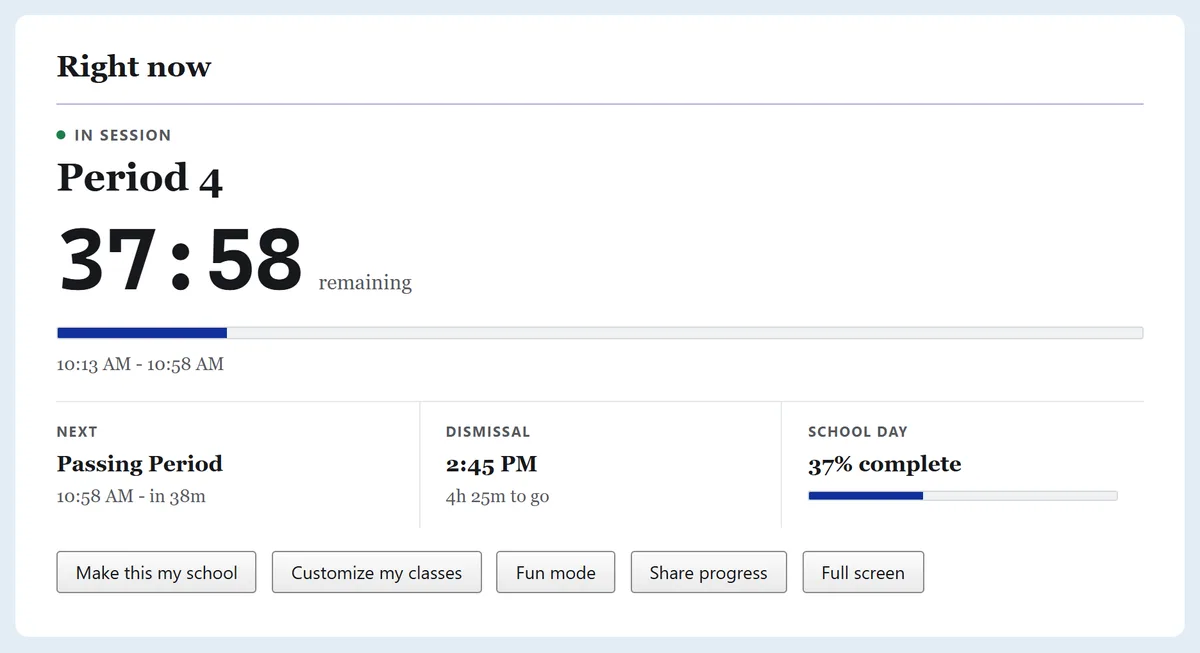
Press Make this my school and the home page opens straight to this countdown every time you come back. Customize my classes lets you replace “Period 3” with “Chemistry”. Both are saved in your own browser, not sent to us (see Privacy).
3. Pick your schedule and lunch
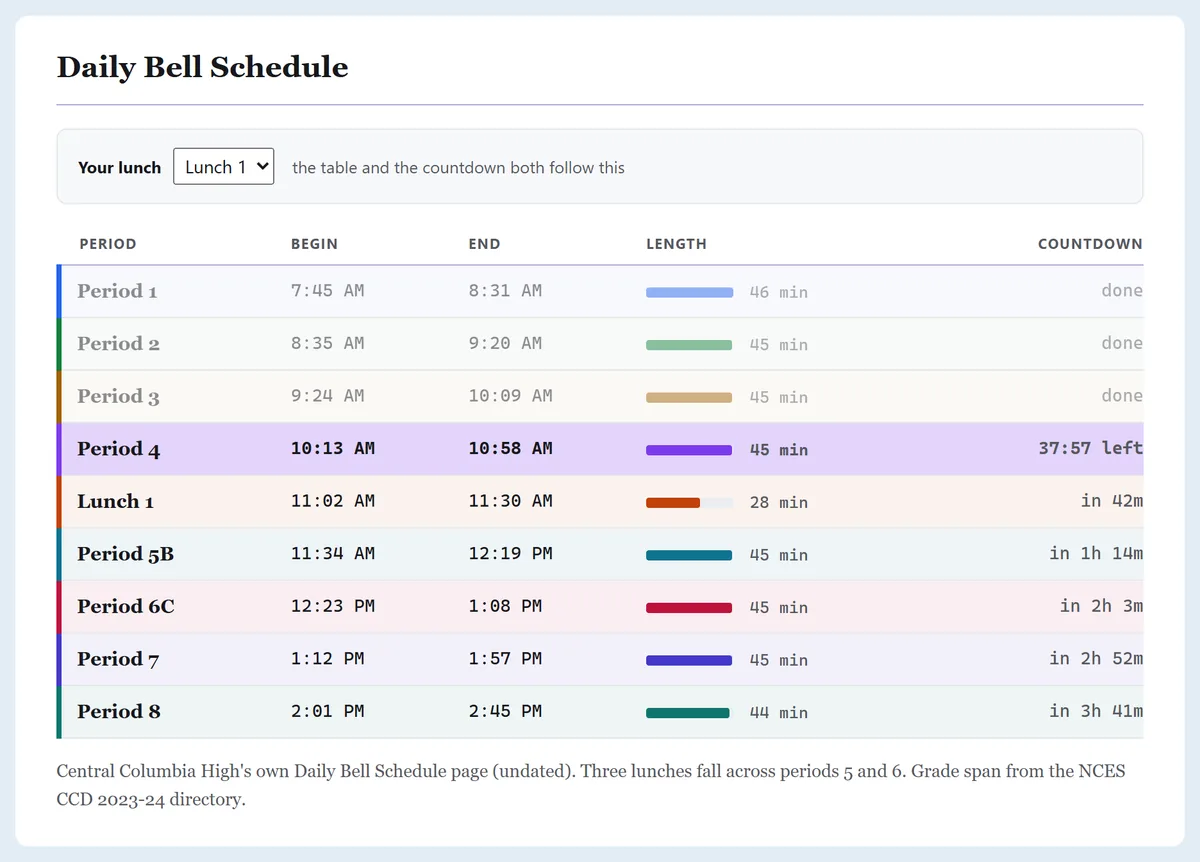
Many schools run more than one schedule: a regular day, a two-hour delay, an early dismissal. You can switch between them on the page. Where a school splits lunch into groups, pick yours and both the table and the countdown follow it.
4. Take it with you
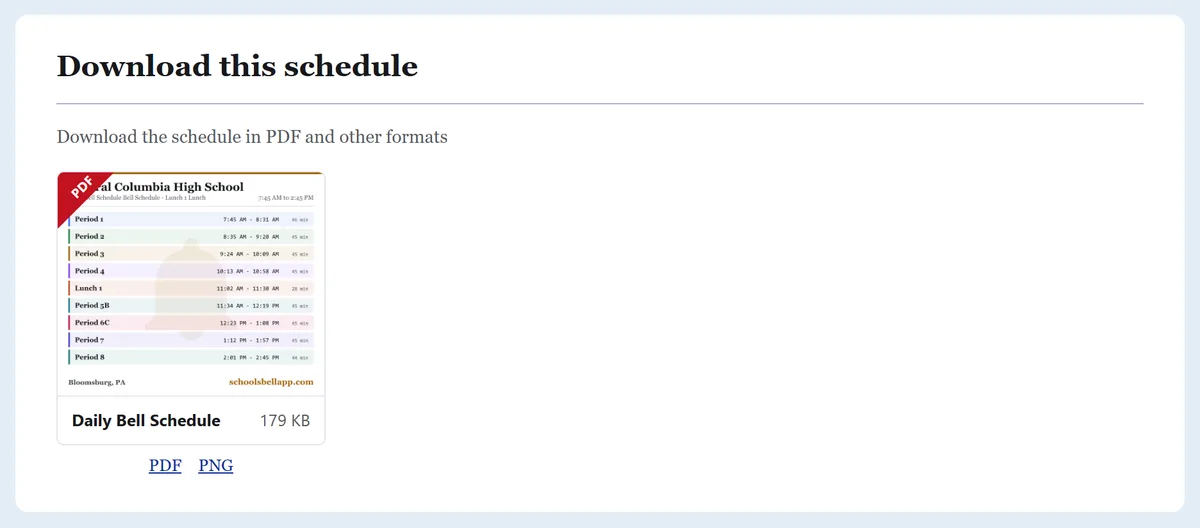
Every schedule can be downloaded as a PNG image or a PDF, to print or to keep on your phone. The web address printed on the PDF is a working link.
5. Check the source
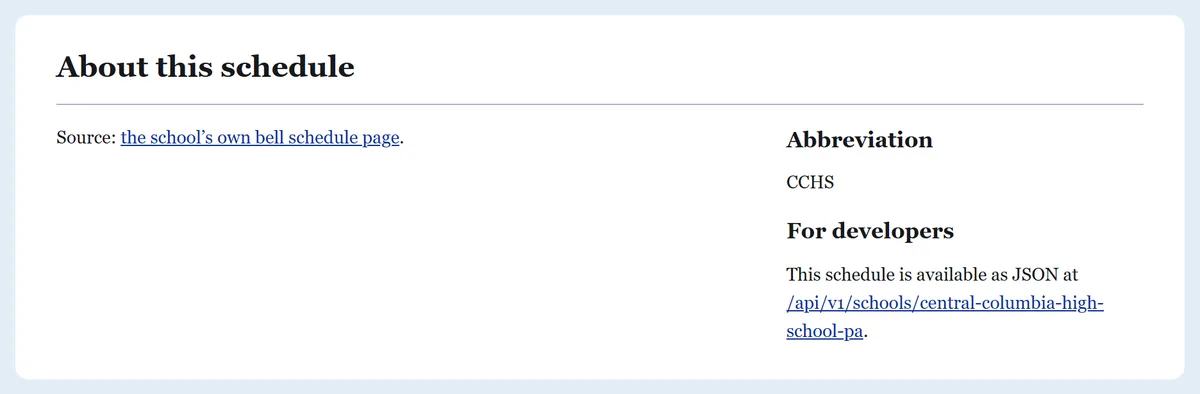
Near the bottom of every school page is a link to the page or document the times were copied from. If something looks off, that’s the first place to look. The school’s own version always wins.
When a time is wrong
Schools change schedules, and sometimes we copy one wrong. Email [email protected] with the school’s name and, if you can, a link to the current schedule. We check it against the school’s own document before changing anything.
Sources
- Bell times: each school’s or district’s own published bell schedule. The exact page or document is linked on that school’s page.
- School directory (addresses, grade levels, enrollment): U.S. Department of Education, National Center for Education Statistics, Common Core of Data (CCD), 2023-24 school year, accessed through the Urban Institute’s Education Data Portal.
- Time zones: the IANA Time Zone Database, which every modern browser carries. It’s how the countdown knows when daylight saving time starts and ends in each school’s area.